Creating Different Role Accounts
Overview
After your onboarding application is approved, you can create accounts for team members in the Merchant Portal and use the role mechanism to precisely assign page access and operation permissions. This approach meets team collaboration needs while ensuring the security of sensitive information and critical operations.
Operation Process
Access Team and Security
- Log in to the Merchant Portal
- Click Settings → Team and security in the left menu
- Enter the Team and Security page
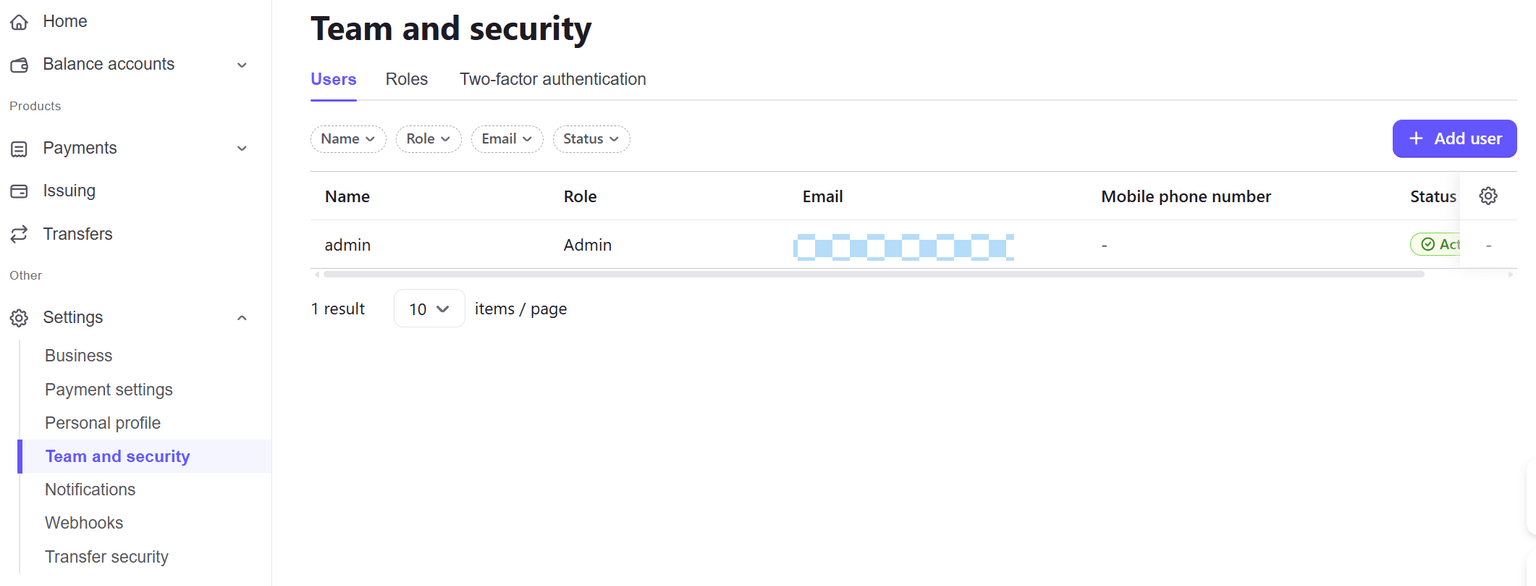
Create a Role
Before adding users, it is recommended to create the required roles first to assign appropriate permissions to different positions.
- Click the Roles tab
- Click the Add Role button
- Enter the role name (e.g., Finance, Operations, Customer Service)
- Check the pages and functional permissions the role needs to access
- Click Confirm to save the role
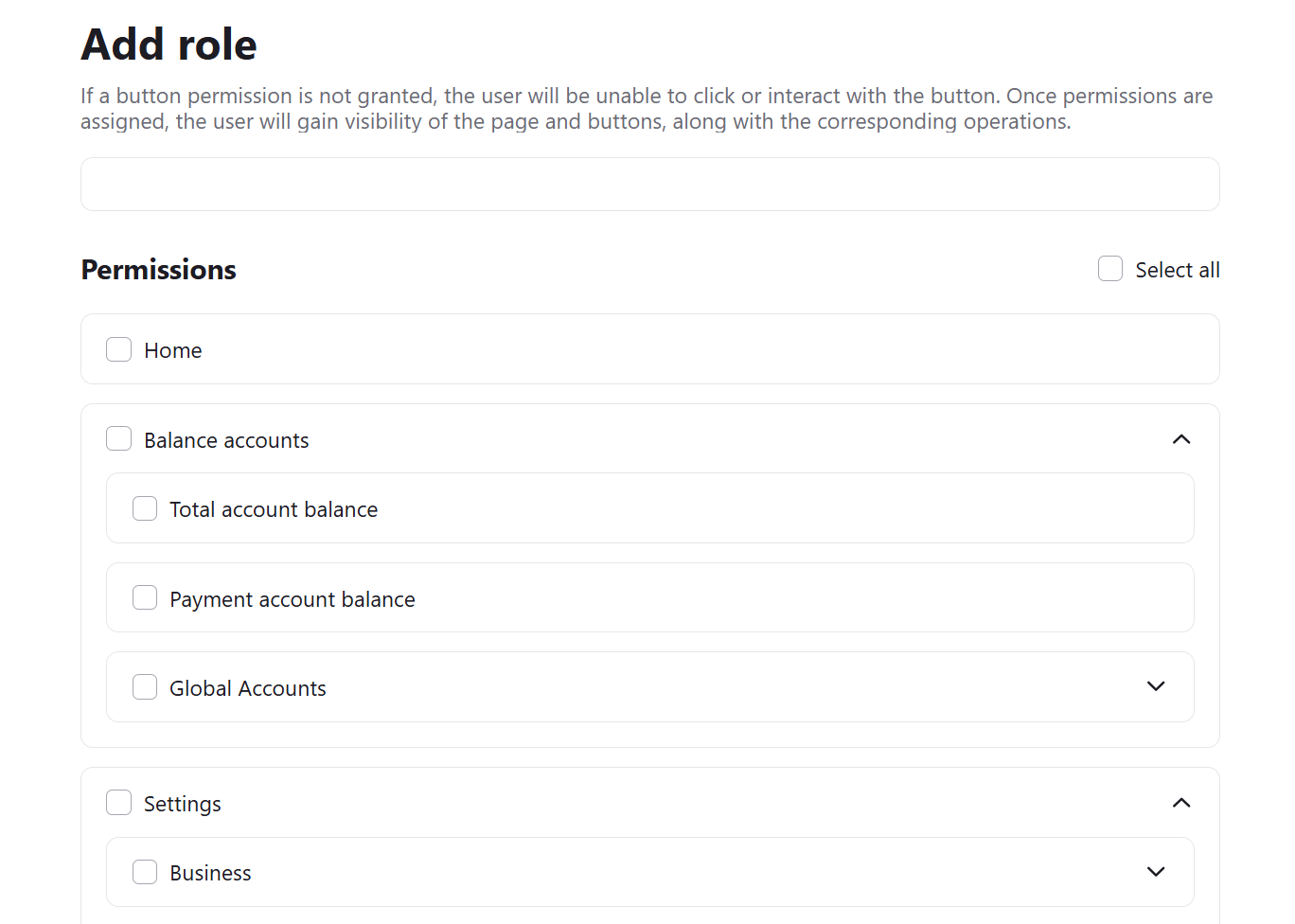
Permission Configuration Description:
| Permission Module | Included Features |
|---|---|
| Home | Home data overview |
| Balance Account | Comprehensive account balance, payment account balance, global accounts |
| Payment | Transaction management, payment settlement |
| Card Issuing | Card issuing related features |
| Payout | Payout related features |
| Settings | Business, personal profile, payment settings, team and security, notifications, Webhooks, transfer security |
Tip: Permissions are set at the button level. If a button permission is not selected, the user will not be able to click that button to perform the operation. After adding permissions, users will have page and button display as well as operation permissions.
Add a User
After creating roles, you can add accounts for team members.
- Click the Users tab
- Click the + Add User button in the upper right corner
- Fill in user information:
| Field | Description | Required |
|---|---|---|
| Name | User's real name | ✅ |
| Login Email | Email address for logging into the Merchant Portal | ✅ |
| Contact Email | Email for receiving system notifications (can be different from login email) | — |
| Receive Chargeback Email Notifications | When checked, this user will receive chargeback-related email notifications | — |
| Password | Set the user's login password | ✅ |
| Confirm Password | Confirm password | ✅ |
| Role | Select a created role for the user | ✅ |
| Status | Enable/Disable this user account | ✅ |
- Click Add to complete user creation
Common Role Configuration Examples
Based on different business needs, here are some common role configuration recommendations:
| Role Name | Recommended Permission Configuration | Applicable Personnel |
|---|---|---|
| Admin | All permissions | Business owner, supervisor |
| Finance | Balance account, payment settlement, payout | Finance personnel |
| Operations | Home, payment (transaction management) | Operations personnel |
| Customer Service | Home, payment (transaction management - view only) | Customer service personnel |
| Technical | Settings (Webhooks, payment settings) | Technical developers |
User Management Operations
Edit User
- Find the target user in the user list
- Click the edit button in the operation column
- Modify user information and save
Disable/Enable User
- Find the target user in the user list
- Click the status toggle in the operation column
- User status will switch immediately
Note: After disabling a user, that user will not be able to log in to the Merchant Portal.
Reset Password
If a user forgets their password, the administrator can:
- Find the target user in the user list
- Click the reset password button in the operation column
- Set a new password
Security Recommendations
- Principle of Least Privilege: Only grant users the minimum permissions required to complete their work
- Regular Review: Regularly check the user list and permission configuration, promptly disable accounts of departed employees
- Password Security: Recommend users use strong passwords and change them regularly
- Sensitive Operations: Permissions involving fund operations should only be granted to trusted personnel
FAQ
Q: Can a user have multiple roles?
A: Currently, each user can only be assigned one role. If you need combined permissions, it is recommended to create a new role and configure all required permissions.
Q: What happens to users using a role after it is deleted?
A: Before deleting a role, ensure no users are currently using that role. It is recommended to adjust related users to other roles before deleting.
Q: Can the login email be modified?
A: The login email cannot be modified after creation. If you need to change the email, please create a new user and disable the old user.
Q: How many users can be created at most?
A: There is no limit on the number of users. You can freely create the user accounts needed based on your team size.